Which Shopify Barcode Should Come First? A Decision Guide for Google Shopping

By Robin Laseur

For Google Shopping, use the correct assigned GTIN for the exact product variant when one exists. If your feed reads Shopify’s first barcode, that value should support the intended GTIN submission. Confirm the mapping before reordering, and handle products without assigned GTINs through the appropriate product-data settings.
Your retail team may need a supplier label, an internal code and a marketplace identifier on the same item. The decision table below helps you choose the channel treatment for each situation. It also separates a sound identifier choice from evidence that your feed sent it correctly.
For what changed when Shopify began allowing up to 20 barcodes per variant, see Shopify’s multiple barcodes update.
Establish what your Google feed reads
Shopify’s multiple-barcode release keeps the first barcode as the value used where a single barcode is expected. Before changing that position, establish how your Google feed obtains its identifier. The mapping in your actual channel or feed application determines which catalog edit will affect the data submitted to Google.
The September 8 Shopify announcement confirms that variants can hold up to 20 barcodes while channels continue to read the first. Here, “primary barcode” means that first value, rather than a separate Google product attribute.
Start with one product already submitted to Merchant Center. Record its Shopify variant ID, barcode order and current Google GTIN value. Ask the feed owner which source field supplies that value and whether any mapping rule changes it.
A match between the two screens is useful evidence, but it does not prove the route. A feed app could be configured to read another field containing the same value. Inspect the configuration before deciding that reordering Shopify barcodes is the right intervention.
If a separate source supplies the feed, make the correction there and record its relationship to Shopify. This keeps a channel-specific change from becoming an unexplained catalog-wide edit.
Confirm the identifier belongs to the item you sell
A GTIN is a Global Trade Item Number identifying a trade item. The candidate must belong to the exact product being offered, including its variant and relevant packaging. Establish that relationship from reliable product information before checking formatting or choosing where the identifier sits in Shopify.
Google’s product-identifier guidance points merchants to product packaging and the manufacturer as sources. It also distinguishes identifiers that are missing from your records from products that have no assigned identifiers. An unavailable code is a research task, not evidence that the product lacks one.
For a hypothetical beauty retailer, a code on a supplier’s shipping carton needs investigation before it becomes the identifier for an individual bottle. Ask what unit the code identifies, then compare that answer with the product offered on the landing page.
Keep the supporting product sheet or supplier confirmation alongside the catalog record. A future colleague should be able to understand the assignment without repeating the investigation.
After product identity is established, apply the destination’s rules. Google’s GTIN specification describes accepted formats and requires the correct value for the product. A format check can reject an invalid number; it cannot establish that a valid number belongs to this item.
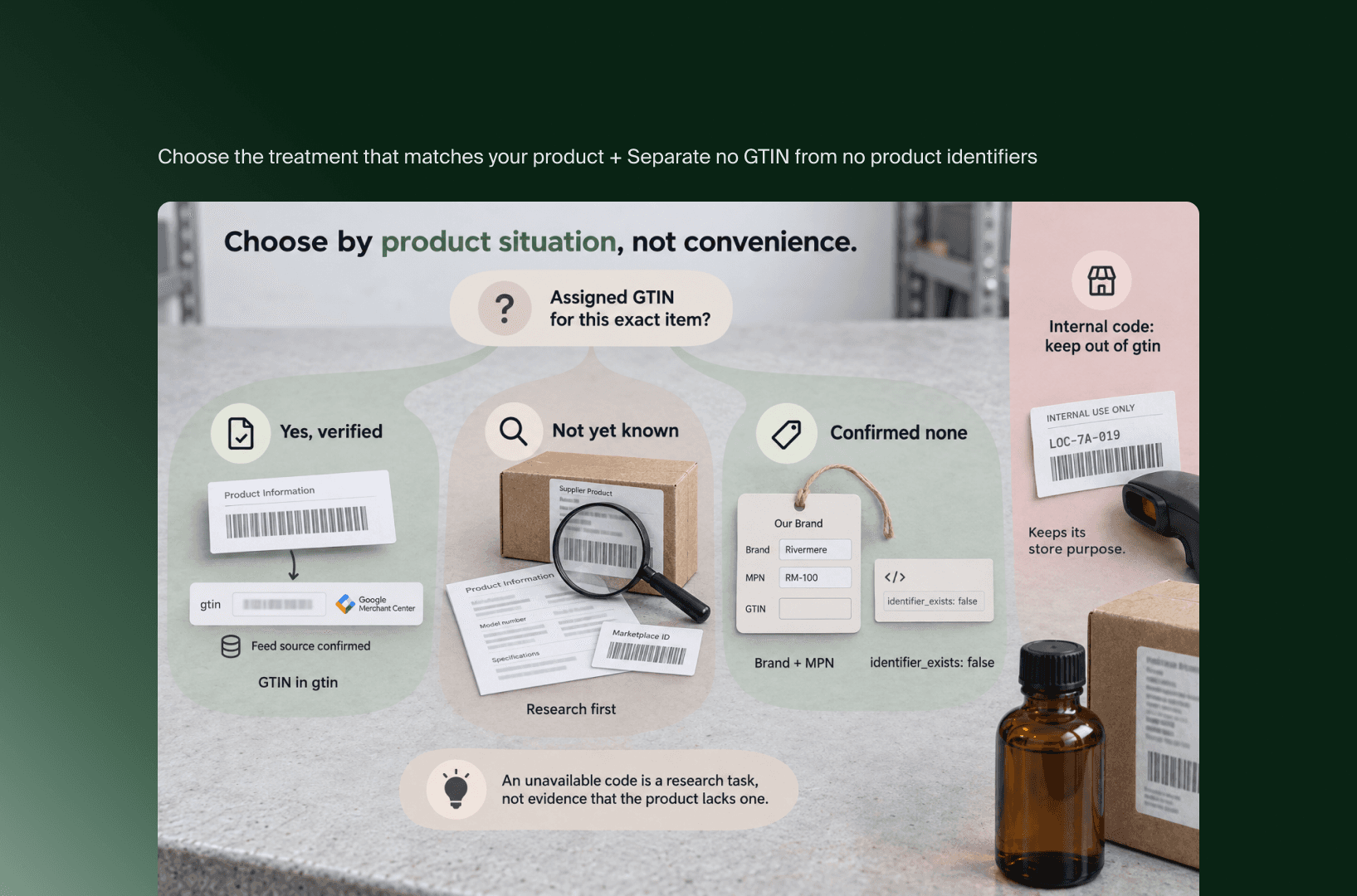
Choose the treatment that matches your product
Choose a barcode policy by product situation, then confirm that your feed can express it. A product with a verified GTIN needs that identifier represented correctly. A product without one needs the appropriate alternative data. An internal or marketplace code requires separate treatment from the GTIN submitted to Google.
The following table is an editorial decision aid combining Shopify’s first-value behavior with Google’s identifier guidance. Its recommendations are conditional on the source mapping established above.
Product situation | Identifier decision | Shopify and feed action |
|---|---|---|
Exact variant has a verified GTIN | Use that assigned identifier for Google. | If the feed uses the first barcode, make that position agree with the intended submission; inspect the result. |
Same item also has an internal lookup code | Preserve its operational purpose separately. | Keep the lookup code from replacing the intended GTIN in the exported field. |
Only an ASIN or another marketplace reference is available | Establish whether an assigned GTIN exists. | Do not copy the marketplace reference into |
Private-label product has an assigned GTIN | Follow the product’s documented assignment. | Confirm that the code belongs to the branded item you sell. |
Product has no assigned GTIN | Apply the relevant no-GTIN product-data requirements. | Inspect brand, MPN and connector settings; prevent an internal code from filling |
Product has several legitimate identifiers | Determine which identifiers apply to the offer and destination. | Verify connector capabilities before assuming it exports the full collection. |
Apply the table per product group only where the underlying evidence is shared. “All private-label products” is too broad a rule if some of those products have assigned GTINs and others do not.
The same care applies to region-based shortcuts. A Netherlands-targeted store should choose the identifier documented for the product and accepted by the destination. Country preference alone is insufficient evidence for replacing a verified code.
Separate no GTIN from no product identifiers
A product can have a brand and manufacturer part number even when it has no assigned GTIN. Determine which identifiers exist before configuring the feed. Leaving the GTIN absent and declaring that product identifiers do not exist are different decisions, with different requirements in Google’s product-data specification.
An MPN is a manufacturer part number identifying a product within the manufacturer’s range. Shopify’s Google & YouTube channel requirements direct merchants to supply MPN and brand for products without a GTIN. Review the available product data before changing those channel settings.
Google’s identifier_exists documentation reserves a false value for products without the applicable assigned identifiers. A missing value in your spreadsheet does not justify that declaration. Neither does an inconvenient error message.
Consider a hypothetical own-brand accessory with no GTIN but an established brand and manufacturer part number. The feed owner should work through that combination and inspect the exported attributes. Selecting a generic “custom product” setting without checking its output could express a different situation from the one the catalog team intended.
For a product confirmed to have no GTIN, the useful check is whether the destination receives the correct absence of that attribute. If your connector instead sends an internal barcode, review its supported mapping options before expanding the change. This guide does not assume how any particular connector handles a Custom-typed value.
Resolve restricted codes and multiple identifiers explicitly
An identifier can be useful inside your business while being unsuitable for Google’s GTIN field. Check destination restrictions before assigning it to the feed. When a product has several valid identifiers, also distinguish Google’s accepted data structure from the values your Shopify connection is capable of submitting.
Google’s restricted-GTIN guidance excludes codes starting with 2, 02 or 04. Treat a restricted result as a reason to establish the correct assignment. Trimming a prefix to pass validation would change the identifier without proving that the new value belongs to the product.
Google’s GTIN specification permits up to 10 repeated values and explains relevant multiple-identifier situations. That capacity does not establish that your Shopify feed exports additional barcode entries. Request a sample of the actual submission before relying on it.
If two codes appear legitimate, record the source and purpose of each. Your feed specialist can then assess the destination requirements against the connector’s supported behavior. Bulk reordering before that assessment removes context that may be needed to explain the existing setup.
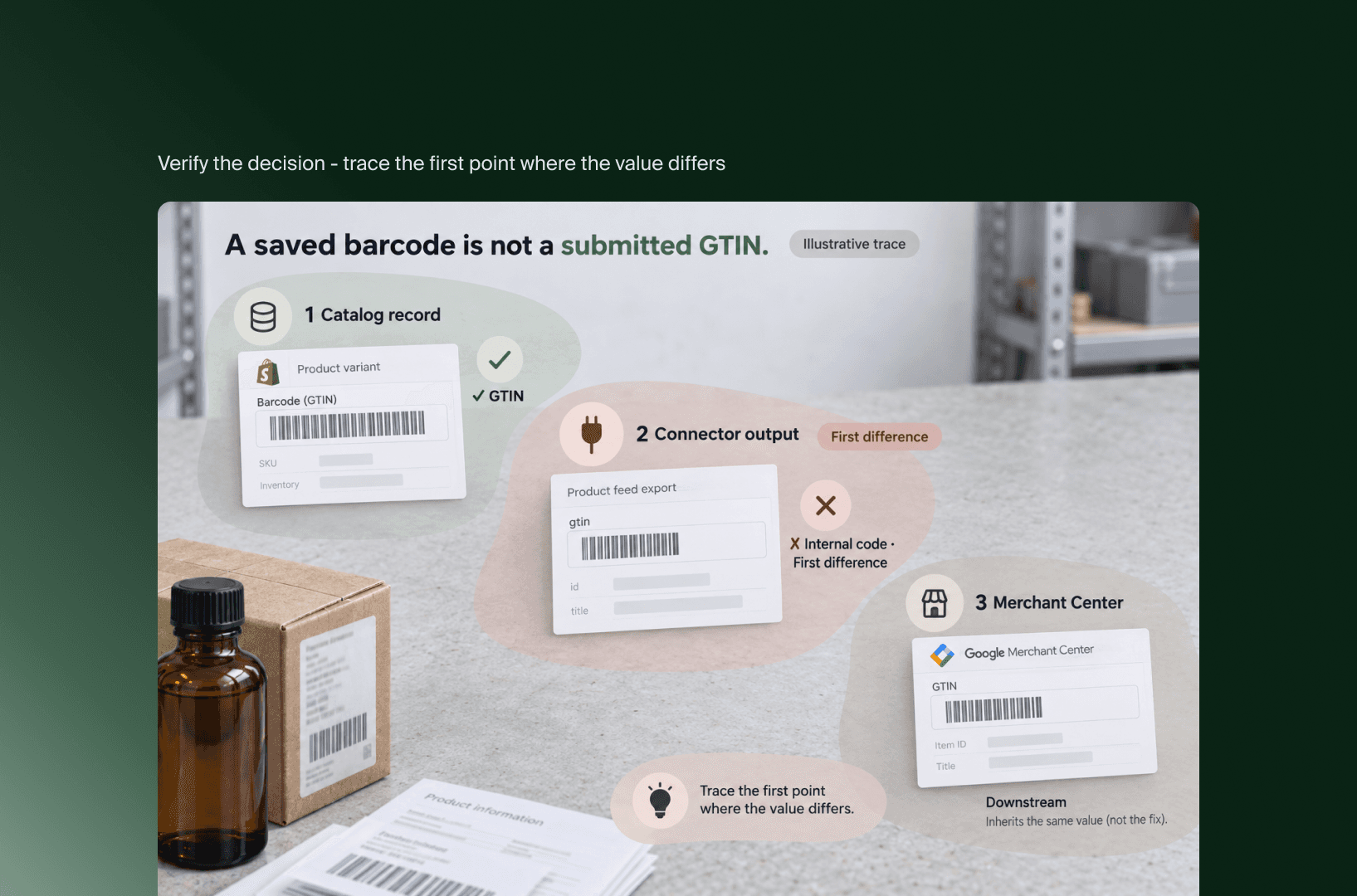
Verify the decision before applying it across the catalog
A barcode decision is ready for wider rollout when product evidence, source configuration and destination output agree. Test a representative selection of the situations you intend to change, preserve the starting values, and inspect the result after processing. A successful save in Shopify does not confirm the submitted Google attributes.
Use this sequence as a change-control procedure, adjusted to your feed application and catalog ownership:
Record the starting state. Save variant identifiers, current barcode order, feed mapping and the corresponding Merchant Center product reference. Note who can restore the source configuration.
Approve the intended product data. Attach the GTIN evidence or the basis for the no-GTIN treatment. Name the catalog owner who confirms product identity and the feed owner who confirms the destination fields.
Change a representative sample. Include the product situations affected by the proposed rule. Keep unrelated catalog changes outside the sample so differences are easier to investigate.
Inspect the submitted and processed values. Compare the expected GTIN, brand, MPN and identifier-existence treatment with the fields relevant to each item. Record any transformation or omission rather than assuming the connector applied the intended rule.
Review the outcome after synchronization. Check Merchant Center product issues and verify that the authoritative catalog system preserves the intended data on its next relevant update. Expand only the product groups whose checks are resolved.
Google notes that restricted-GTIN corrections can take 24–72 hours to appear on the Needs attention page. That is a documented processing window for that issue, not a promise that any barcode edit will secure approval. Record the check time so a pending result is not mistaken for a completed review.
For a discrepancy, trace the first point where the value differs: the catalog record, connector output or processed destination. Correcting that point gives the next test a clear purpose.
Key takeaways
Choose an identifier using evidence about the exact item and Google’s requirements. Private-label status or a convenient internal code is insufficient on its own.
Confirm the feed’s source before changing Shopify barcode order. The edit should follow the mapping you actually use.
Keep the no-GTIN decision separate from the no-identifiers declaration, and verify the resulting fields on a representative sample.
If your catalog and feed owners need help agreeing on the mapping, Flatline’s eCommerce team can help you scope the integration work and the checks needed before a wider rollout.
Related articles


