Shopify Multiple Barcodes: What Changes for Your Catalog, POS and Sales Channels

By Robin Laseur

Shopify multiple barcodes let a product variant hold up to 20 identifiers. Your team can associate different codes with the same item, while systems expecting one barcode still use the first. For connected stores, the practical next step is to map how each system uses those identifiers.
Deciding which barcode Google Shopping should read as the GTIN? See how to choose the primary barcode for Google Shopping.
That matters when your stock arrives with a supplier code and your store team uses another label. The impact matrix below gives catalog, retail and integration teams a shared record of what to check, who owns it, and what evidence to keep.
What Shopify has changed
Shopify’s September 8 release expands barcode management within the existing product record. Merchants can maintain additional identifiers through the Admin or mobile app, edit them in bulk, and transfer the collection through CSV. Existing barcode data remains in place, so adopting the feature starts with deciding where additional identifiers would help.
The merchant announcement names the CSV field as Variant Barcodes. Treat that export as a useful starting record before changing a batch of products.
A variant is a specific version of a product, such as a shoe in a particular size and color. Additional barcodes belong to that version. A supplier’s label needs to resolve to the exact item your team sells.
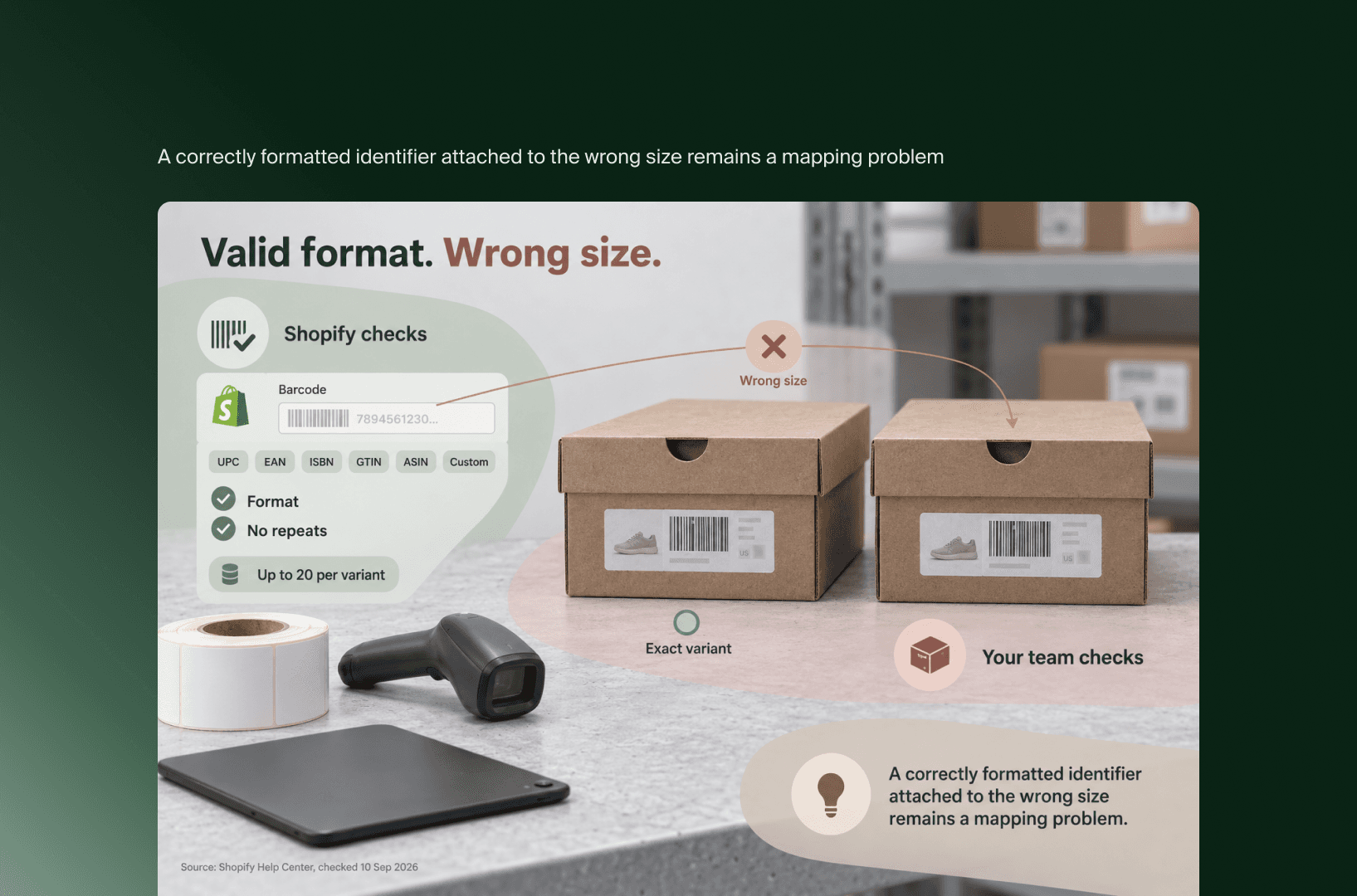
Shopify’s product details documentation lists UPC, EAN, ISBN, GTIN and ASIN types alongside Custom values. It also specifies format constraints and prevents repeating a barcode value on the same product or variant.
Those checks help with data entry. Your catalog team still needs to establish that a code belongs to the intended product. A correctly formatted identifier attached to the wrong size remains a mapping problem.
POS can recognize more of the labels your staff encounter
Shopify POS v11.14 can find a variant through any of its associated barcodes. Additional codes must first be attached in Shopify Admin. For store teams handling different supplier or packaging labels, this creates another way to identify the same catalog item during the workflows they already use.
Shopify documented this behavior in its September 1 POS release. The announcement covers scanning and search, including use during checkout, receiving and inventory tasks.
Consider a hypothetical footwear retailer receiving a restock with a different supplier label. The useful acceptance check is specific: scanning either associated label should return the intended size and color. Staff should compare the result with the physical item before processing the stock.
Record the POS version, device and workflow used for the check. A search result in Admin provides different evidence from a scan at the receiving desk. Keeping both results makes it easier to distinguish an incorrect association from a device or workflow issue.
If only one location encounters alternative labels, begin there. The operational benefit should be visible in a real task before the catalog team expands the work across other locations.
Sales channels still need their own identifier checks
Shopify’s release preserves the first barcode as the value used where one barcode is expected, including channel feeds and labels. Your review should therefore separate adding alternative identifiers from changing the first one. The second action can alter the value another system receives, depending on its mapping.
This is the boundary to carry into catalog change requests. A retail colleague adding a useful lookup code and a feed specialist choosing an exported identifier may be working on the same variant for different reasons.
A GTIN is a Global Trade Item Number used to identify a trade item. Google Merchant Center’s GTIN specification requires appropriate, accurate identifiers and explains when a product has no assigned GTIN. An internal lookup code should not be assumed to meet those requirements.
Before altering the first barcode, capture the current exported value and its destination field. Then inspect the resulting feed after the proposed change. For Google Shopping, include the product’s Merchant Center status in that check.
The detailed choice of identifier depends on the product and channel. At this stage, the Head of eCommerce needs a named owner for that decision and evidence of the value leaving the store.
Connected systems need verification at both ends
ERP, PIM and fulfillment integrations should be checked against their own mappings and supported API versions. A product field being available in Shopify Admin does not establish how a connector reads or writes it. Verify the source record, the transferred value and the destination record for the workflow you intend to use.
An ERP manages business operations such as stock and purchasing; a PIM manages product information. Either may own the identifier data in your setup. Establish which system is authorized to change that data before editing it in Shopify.
For example, if a PIM sends scheduled product updates, check the variant after the next synchronization. Record whether the intended barcode associations remain. This is a verification step, not a claim that a particular connector overwrites them.
The Shopify GraphQL ProductVariant documentation, checked on September 10 with version 2026-07 displayed as latest, still lists a single barcode field. That observation alone cannot establish support across other versions or an API removal deadline.
Ask your integration owner to document the version and operations your connector uses. A screenshot of the Admin record is useful catalog evidence; the connector’s transferred data establishes what reached the next system.
Use this impact matrix in your catalog review
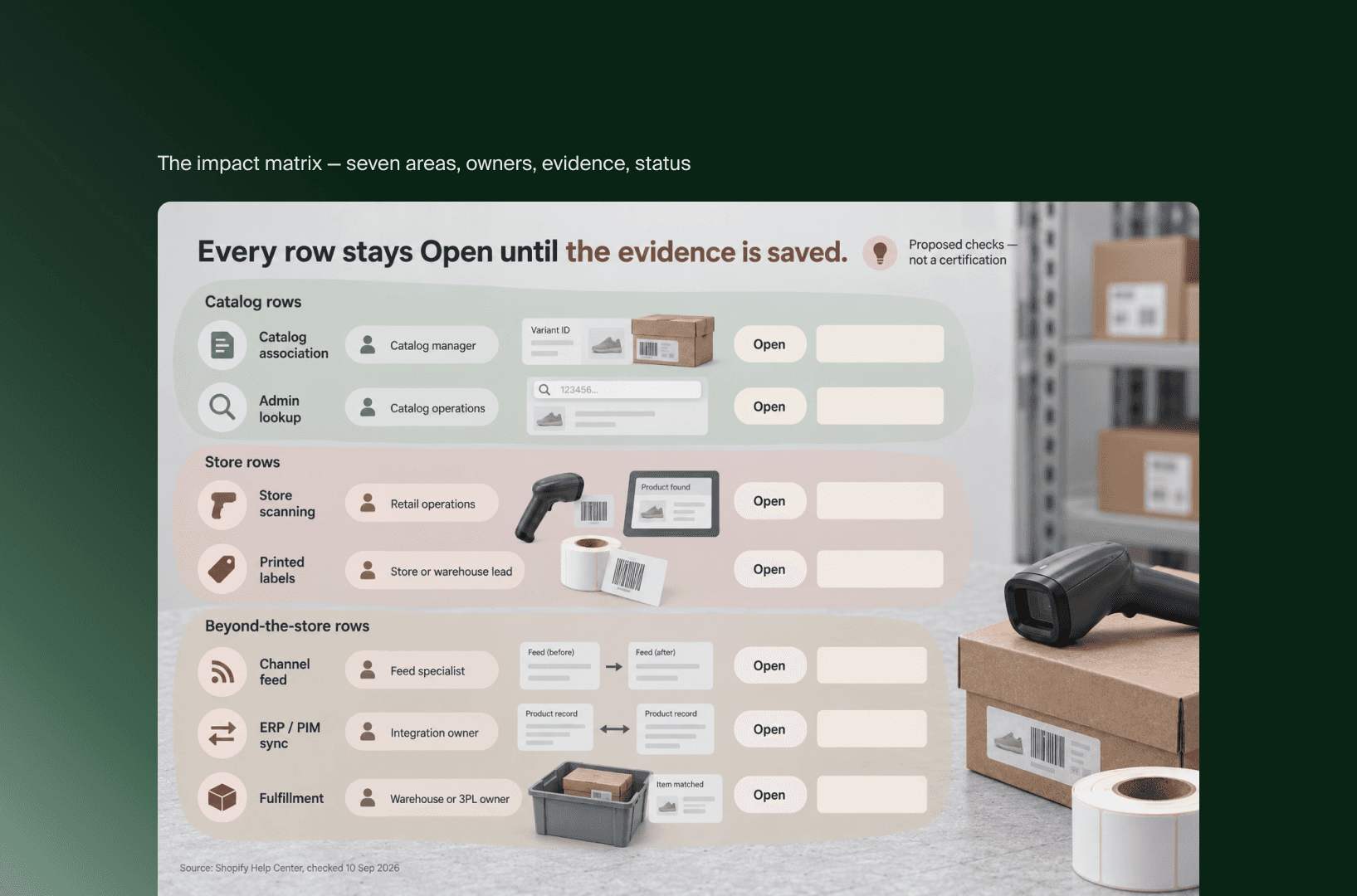
A barcode impact review should connect each intended use with an owner and a saved result. Copy the matrix below into your working document, replace the suggested roles with names, and record a status for each row. Treat untested behavior as open until someone captures the relevant evidence.
Use Verified, Open or Not applicable as the status. Add the actual outcome after the status, including unexpected results. These are proposed review criteria, not a Shopify certification or a compatibility test already performed by Flatline.
Area | Check to perform | Suggested owner | Evidence to record | Status / result |
|---|---|---|---|---|
Catalog association | Match each added code to the physical product and exact variant. | Catalog manager | Product reference, variant ID, code source and saved record. | Open |
Admin lookup | Search using the intended alternative identifier. | Catalog operations | Search input and returned variant. | Open |
Store scanning | Scan the associated labels in the relevant store workflow. | Retail operations | POS version, device, workflow and returned variant. | Open |
Printed labels | Generate a label through the workflow the business uses. | Store or warehouse lead | Label sample and identifier it encodes. | Open |
Channel feed | Compare the intended identifier with the exported destination field. | Feed specialist | Before-and-after feed values and channel status. | Open |
ERP / PIM sync | Inspect the record after the relevant read and write cycle. | Integration owner | Connector version, direction of transfer and resulting values. | Open |
Fulfillment | Check the identifier used at the applicable receiving or picking step. | Warehouse or 3PL owner | Workflow result and matched item. | Open |
The matrix is complete when the rows relevant to your proposed use have named owners and recorded outcomes. An unresolved fulfillment check can remain outside a limited store pilot if that pilot makes no fulfillment-related change and the owners agree on its scope.
Start with a representative catalog sample
A practical pilot should represent the identifier situations your business handles. Select products with different label sources, involve the teams using those labels, and record the current state before editing. Keep the pilot scope explicit so evidence from one workflow is not treated as confirmation of every connected process.
For a hypothetical fashion retailer, a useful sample might include a supplier-labeled item, an item with an internal shelf label and a product sold through a connected channel. These are sample categories, not a required sample size. Choose variants that reflect your own catalog.
Keep an export of the starting records and note which values must remain stable. Add the relevant associations, run the matrix checks and review the next scheduled synchronization where applicable. If the recorded outcome differs from the expected one, assign that discrepancy before expanding the change.
There is also a reasonable outcome where no rollout is needed. A store whose teams already identify products consistently may have little immediate use for additional codes. Record that decision and revisit it when a supplier, retail location or channel introduces a concrete need.
Key takeaways
Additional identifiers are most useful where teams encounter different labels for the same variant. Confirm the physical-item association before expanding catalog edits.
Assign ownership of the first barcode and the exported channel identifier. Retail lookup and feed requirements need separate checks.
Use the impact matrix to distinguish documented platform behavior from verified behavior in your own setup. Keep the supporting records with each result.
Take a representative item to the next catalog review and trace it through the workflows your team intends to change. That gives each owner a specific result to confirm before the next batch of edits.
Related articles


