How to create a converting Google Shopping feed

By Robin Laseur

In eCommerce, getting your products in front of potential customers is crucial. Google Shopping is one of the most effective platforms to achieve this, but simply listing your products isn’t enough. You need to create a converting Google Shopping feed that not only attracts clicks but also drives sales.
This comprehensive guide will walk you through the process of creating, optimizing, and maintaining a high-converting Google Shopping feed.
What is a Google shopping feed?
Besides searching directly on Amazon or visiting a specific store’s website, one of the most common ways people look for products online is by using Google. A Google Shopping feed is a file containing detailed information about your products, formatted to meet Google’s specifications. This feed enables Google to display your products in search results, Google Shopping ads, and other Google services.
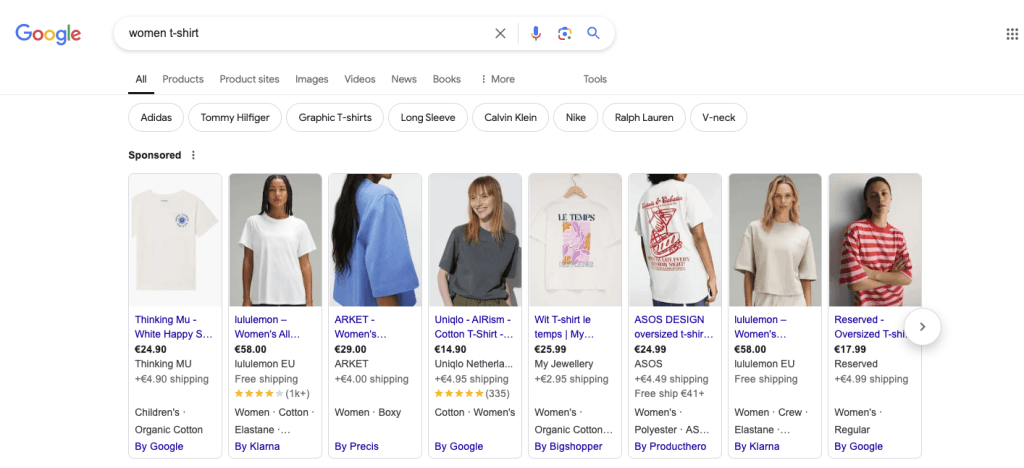
It includes crucial information such as product titles, descriptions, prices, images, and other attributes. To understand the full list of required and optional attributes, you can refer to the Google Merchant Center Help.
Why is a converting Google shopping feed important?
Creating a converting Google Shopping feed offers several benefits that can significantly boost your eCommerce success.
Increased visibility is one of the primary advantages, as your products are more likely to appear in relevant search results, which enhances their visibility and draws more potential customers to your listings. Additionally, an enhanced shopping experience is provided through detailed and accurate product information, which helps customers make informed decisions, leading to higher satisfaction and fewer returns. Ultimately, higher conversion rates are achieved by offering comprehensive and compelling product data, attracting more qualified leads, and driving sales more effectively. By optimizing your Google Shopping feed, you ensure that your products reach the right audience, improving both your visibility and your bottom line.
Steps to create a converting Google shopping feed
1. Set up a Google Merchant Center account
Before you can create a Google Shopping feed, you need a Google Merchant Center account. Here’s how to set one up:
Sign up: Go to the Google Merchant Center and sign up with your Google account.
Enter business information: Provide your business name, country, and time zone.
Verify and claim your Website: Verify your website by adding a meta tag, uploading an HTML file, or using Google Analytics. Detailed instructions can be found here.
Set up Return information: Once you’ve verified your store URL, you can add all your relevant returns and refund information, which should already be available if you’ve set up a Shopify store.
2. Choose a method to create your feed
You have several options for creating a Google Shopping feed. We’ll show you the 3 most common ways:
2.1 Manual feed
Creating a manual feed involves using a spreadsheet to input all required product information. This method offers complete control over your data but can be time-consuming for large inventories.
Create a spreadsheet: Use Google Sheets or Excel. Include all required attributes in the columns.
Format the data: Ensure the data adheres to Google’s feed specifications.
Upload to Google Merchant Center: In the Merchant Center, navigate to “Products” > “Feeds” > “Add a primary feed.” Follow the prompts to upload your spreadsheet.
2.2 ECommerce platform integration
Many eCommerce platforms, such as Shopify, WooCommerce, or BigCommerce, offer direct integration with Google Shopping. These platforms simplify the process by automatically syncing your product data with Google Merchant Center.
Integrate with Google Shopping: Follow the specific instructions provided by your platform to link your store with Google Merchant Center.
Sync Your Products: Ensure all product information is up-to-date and synced correctly.
2.3 Feed Management tools
Feed management tools like DataFeedWatch or Channable can automate the process of creating and managing your Google Shopping feed. These tools are particularly useful for large inventories or complex product data.
Connect your store: Link your e-commerce platform to the feed management tool.
Map product data: Ensure all necessary attributes are correctly mapped.
Generate and upload the feed: The tool will generate a feed file, which you can upload to Google Merchant Center.
2.4 Google Shopping feed types
So creating a Google Shopping feed is vital for showcasing your products online, and there are different ways to set them up, but did you know there are several types of feeds available? Each type caters to different needs, and understanding these can help you choose the best one for your business. Here, we’ll explore the six types of Google Shopping feeds and their unique benefits.
Google Merchant Center feed
The Google Merchant Center feed is the primary feed used to display your products on Google Shopping. This feed features a carousel of product images at the top of search results, showing the product photo, price, brand name, and star rating if applicable. It’s fundamental for getting your products noticed by potential customers on Google.
Promotions feed
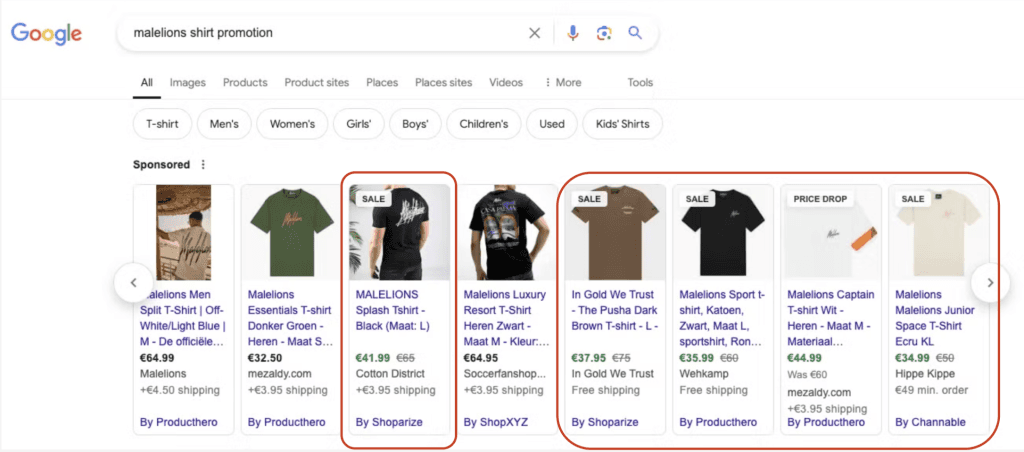
A promotions feed is used to highlight ongoing product promotions or shopping ad campaigns. It includes detailed information about discounts, sales, or special offers, and requires six fields: promotion_id, product_applicability, offer_type, long_title, promotion_effective_dates, and redemption_channel. Utilising a promotions feed can attract more customers by showcasing enticing deals.
Product inventory update feed
The product inventory update feed is designed to keep your product availability and pricing information current. Unlike the main feed, it focuses specifically on the quantity and stock status of your items. This feed is particularly useful for businesses that need to frequently update their inventory. It’s most effective on mobile devices or when checking stock at physical store locations, providing accurate and up-to-date information.
Local inventory ads feed
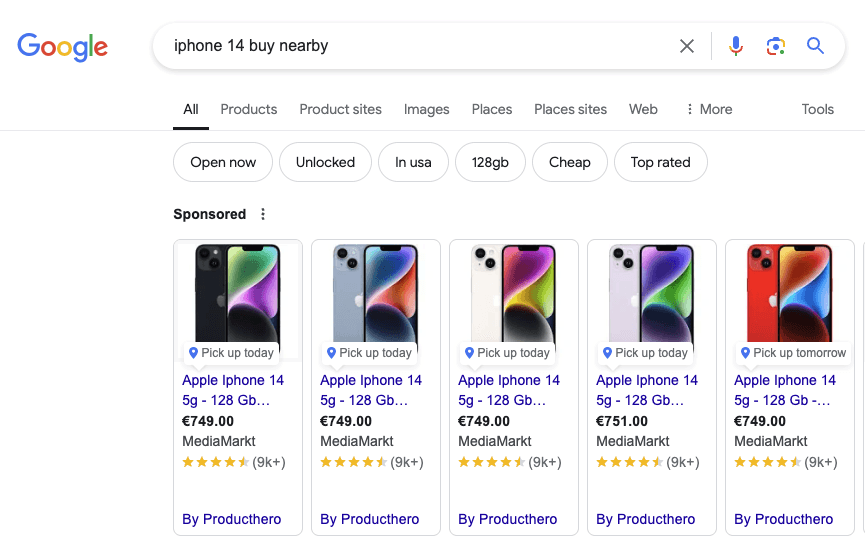
The local inventory ads feed is similar to the product inventory update feed but is specifically tailored for physical stores. It provides detailed stock information and allows for local pickup options, making it ideal for businesses with brick-and-mortar locations. To set up this feed, you’ll need your store code, product data, item identifier, quantity, and price. Regular updates are necessary to ensure the information remains accurate.
Product ratings feed
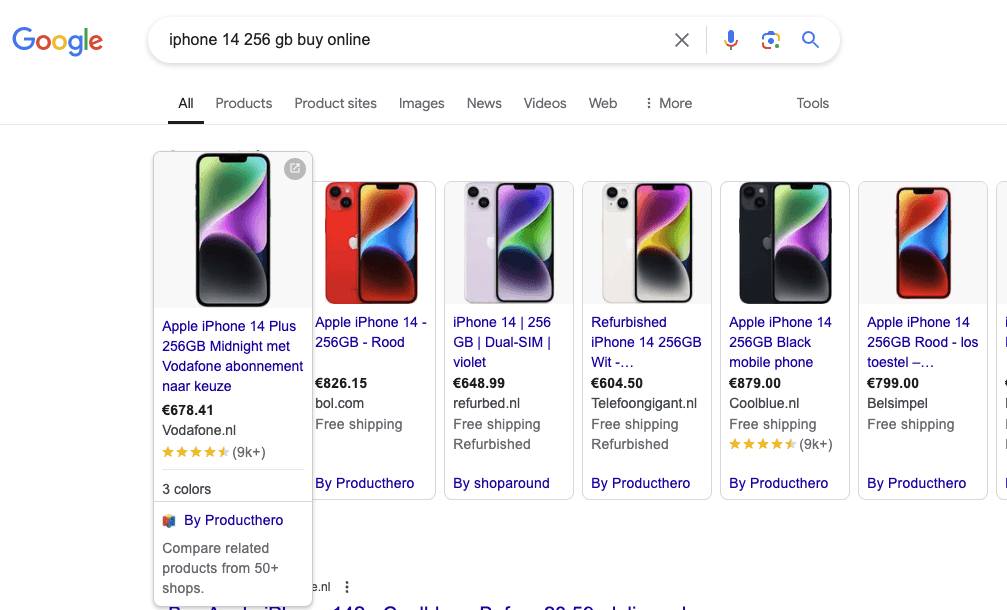
Enhance your Google Shopping listings with a product ratings feed, which includes customer review ratings. This feed can increase the attractiveness of your products by displaying review scores. There are two ways to include product ratings: submitting feeds directly to your Merchant Center account or using a third-party review aggregation service. If you collect reviews directly on your store, you’ll need to submit the feeds manually and keep them updated.
Dynamic remarketing feed
The dynamic remarketing feed targets customers who have previously visited your website or abandoned their shopping carts. These ads appear as regular Shopping feed items but are shown more prominently. They help re-engage potential customers and encourage them to complete their purchases. However, with Google moving away from third-party cookies, which are essential for retargeting, this feed type may see changes in effectiveness over the next few years.
For manual feed management, you will need to use XML or TXT files that include essential fields such as id, title, description, link, image_link, price, condition, availability, brand, and gtin. These files can be created using Google Sheets or Excel and then exported to the required formats.
3. Optimise your product feed for conversions
To get the most out of your Google Shopping feed and drive conversions, consider the following optimisation tips:
3.1 Use high quality Images
High-quality, clear, and visually appealing images are essential. Ensure that your images meet Google’s image requirements.
Resolution: Use high-resolution images (at least 800 x 800 pixels).
Background: Preferably white or transparent backgrounds.
Multiple Angles: Provide images from different angles to give a complete view of the product.
3.2 Craft compelling titles and descriptions
Your product titles and descriptions play a crucial role in attracting clicks and conversions. Here are some tips:
Include Relevant Keywords: Use keywords that potential customers are likely to search for.
Be Descriptive but Concise: Provide enough information to describe the product without being overly lengthy.
Highlight Key Features: Emphasize unique selling points and benefits.
3.3 Ensure accurate pricing and availability
Customers rely on accurate pricing and availability information. Regularly update your feed to reflect current stock levels and prices.
Competitive Pricing: Monitor your competitors’ prices and adjust yours accordingly.
Stock Status: Keep your availability status updated to avoid customer frustration.
3.4 Utilise custom labels
Custom labels allow you to segment your products for better campaign management. For example, you can create labels for seasonal items, high-margin products, or best-sellers.
Custom Label Examples: “Seasonal”, “Best Seller”, “Clearance”.
4. Monitor and maintain your feed
Regular maintenance of your Google Shopping feed is crucial to ensure continued success. Here’s how to stay on top of your feed:
4.1 Feed errors and warnings
Check the Merchant Center for any issues with your feed and resolve them promptly. Google provides detailed diagnostics and suggestions for fixing common errors.
Common Errors: Missing attributes, incorrect data formatting, disapproved products.
How to Fix: Follow the instructions provided in the Merchant Center’s diagnostics section.
4.2 Performance metrics
Use Google Analytics and Google Ads to track the performance of your products. Monitor key metrics such as click-through rate (CTR), conversion rate, and return on ad spend (ROAS).
Adjust Campaigns: Based on performance data, adjust your bidding strategies, and optimize your product listings.
4.3 Regular updates
Update your feed regularly to reflect changes in product information, such as new products, discontinued items, price changes, and stock levels.
Automate updates: If possible, use feed management tools or e-commerce platform integrations to automate feed updates.
Add on: Advanced optimisation techniques
To further boost the performance of your Google Shopping feed, consider implementing these advanced techniques:
Structured data markup
Implement structured data markup (f.e. schema.org) on your product pages. This helps Google better understand your product data and can enhance your search results.
Product Schema: Include markup for price, availability, reviews, and more. Learn more about structured data markup.
Remarketing lists for search ads (RLSA)
Use RLSA to target users who have previously visited your site. By tailoring your bids and ads to these users, you can increase the chances of conversions.
How to set up: Create remarketing lists in Google Analytics and apply them to your Google Ads campaigns.
Price competitiveness
Monitor your competitors’ pricing and adjust your strategies accordingly. Use tools like Google Shopping Insights to gain insights into competitive pricing.
Dynamic pricing: Implement dynamic pricing strategies to stay competitive.
To sum up
Creating a converting Google Shopping feed is a vital step in enhancing your product’s visibility and driving more sales. By following this guide, you can set up, optimise, and maintain an effective Google Shopping feed, ensuring your products reach the right audience at the right time. Remember, continuous optimisation and regular updates are key to staying competitive and achieving long-term success.
Ready to take your B2B business to the next level? Flatline Agency is here to help. Let’s grow together!
If you’d rather hand this off, feed setup and ongoing optimisation are exactly the kind of work our ecommerce agency folds into a full Shopify programme.
Related articles


