Fixing INP on Shopify: The Metric Most Stores Fail, in Fix-Order

By Robin Laseur

The Core Web Vitals report in Search Console turns from green to red, and the failing metric is the one nobody quite understands: INP. The instinct is to assume the worst, that the theme is fundamentally broken and the only fix is an expensive rebuild. For most Shopify stores that instinct is wrong, and acting on it is the most expensive possible response to a problem that usually has a cheaper, ordered solution.
INP is failable precisely because a storefront is one of the most interaction-dense things on the web. This piece is the fix-order: how to measure it correctly, how to find the interaction that is actually costing you the score, and how to work the fixes from cheapest and highest-impact down to the rare case where deeper theme work is genuinely warranted. Almost every store clears it long before that last step.
Why INP is the vital Shopify stores fail
Interaction to Next Paint (INP) is the Core Web Vital that measures how quickly a page responds visually after a click, tap, or keypress. Google treats 200 milliseconds or less as good and anything over 500 milliseconds as poor, measured on real users across the entire visit rather than a single interaction. Shopify stores fail it more often than most sites because ecommerce is unusually interaction-dense.
That density is the whole story. INP replaced First Input Delay in March 2024, and the switch was punishing because FID only graded the first interaction while INP grades the worst one across the session. A storefront is nothing but interactions: variant pickers, quantity steppers, add-to-cart, cart drawers, collection filters, predictive search, mega-menus, quick-view modals. Each one runs JavaScript when a user touches it, and each is a candidate for the slow interaction that becomes your reported score. Add the layer that makes Shopify stores distinctive, a stack of third-party apps each injecting its own scripts, and the main thread that has to respond to those taps is congested before the customer even arrives. Industry field data shows roughly 40 percent of mobile origins still fail INP, and ecommerce sits at the harder end of that distribution.
It helps to know what INP is actually timing, because the fix depends on it. Every interaction has three phases: the input delay (how long the browser waits for a busy main thread before it can even start handling the tap), the processing time (how long your event handler code runs), and the presentation delay (how long the browser then takes to paint the visual result). A poor INP score is one of those three phases going long on your worst interaction. Fixing INP blind, by stripping random JavaScript and hoping, is why so many attempts stall. The score does not move until you fix the phase that is actually long, on the interaction that is actually slow, which is why the next section is about measuring before touching anything.
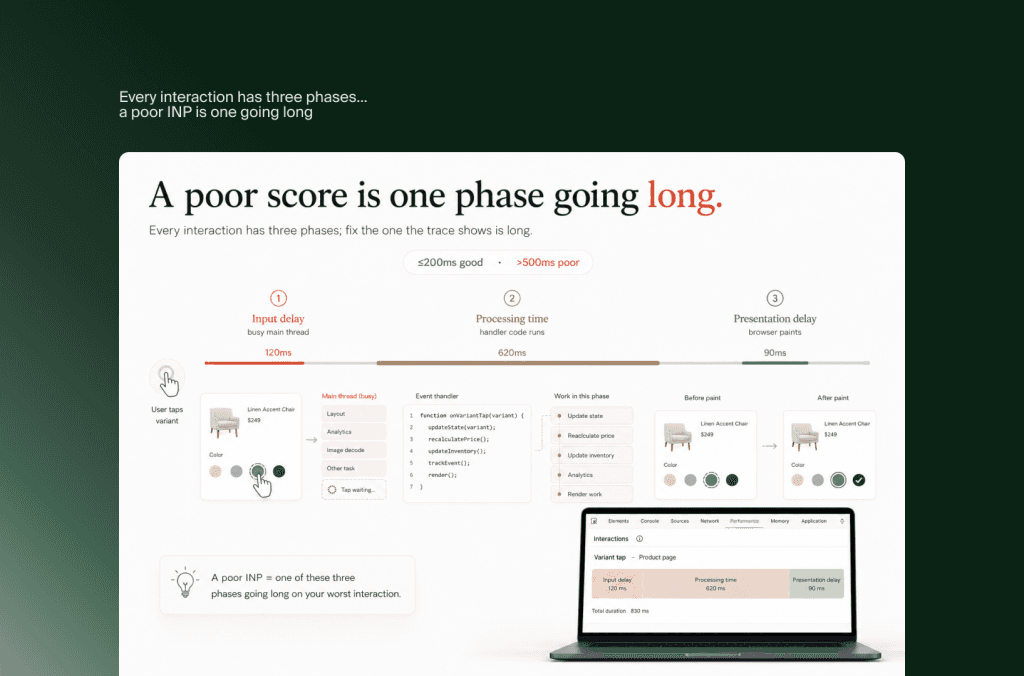
First, measure it right, or you will fix the wrong thing
INP cannot be measured the way most people measure speed. It is a field metric, collected from real users interacting with your live store over time, which means running Lighthouse or PageSpeed Insights on page load will not give you a real INP number. Lab tools load the page; they do not click the variant selector forty times the way your customers do. Start from real-user data, or you will optimize interactions no one is struggling with and leave the painful one untouched.
There are three practical places to get that data, in ascending order of usefulness. Google Search Console’s Core Web Vitals report tells you whether you have an INP problem and on which URL groups, though it stops there and will not name the cause. PageSpeed Insights, run on a high-traffic page, shows the field INP from the Chrome User Experience Report alongside lab diagnostics. Most useful for a merchant is Shopify’s own Web Performance dashboard in the admin, which breaks INP down by page type and device, so you can see immediately whether the pain is on product pages on mobile rather than guessing. Shopify’s own guidance on debugging INP with CSS selectors goes a step further, letting you trace a poor score to the specific element a user interacted with.
The goal of measurement is narrow and worth stating plainly: find the single worst interaction, on the page type where it hurts, and identify which of the three phases is long. Once the admin report or CrUX data points you at, say, the variant selector on mobile product pages, reproduce it in Chrome DevTools. Open the Performance panel, record while you perform that exact interaction, and read the Interactions track. It breaks the interaction into input delay, processing, and presentation, and recent DevTools versions annotate the specific interaction that would be reported as INP. That trace is your diagnosis. Everything in the next section is ordered by which phase the trace shows is long, which is the difference between a fix that moves the score and a week of deleting scripts that changes nothing. Shopify has been clear since it first flagged the FID-to-INP switch that this metric is field-first, and the stores that clear it start there.
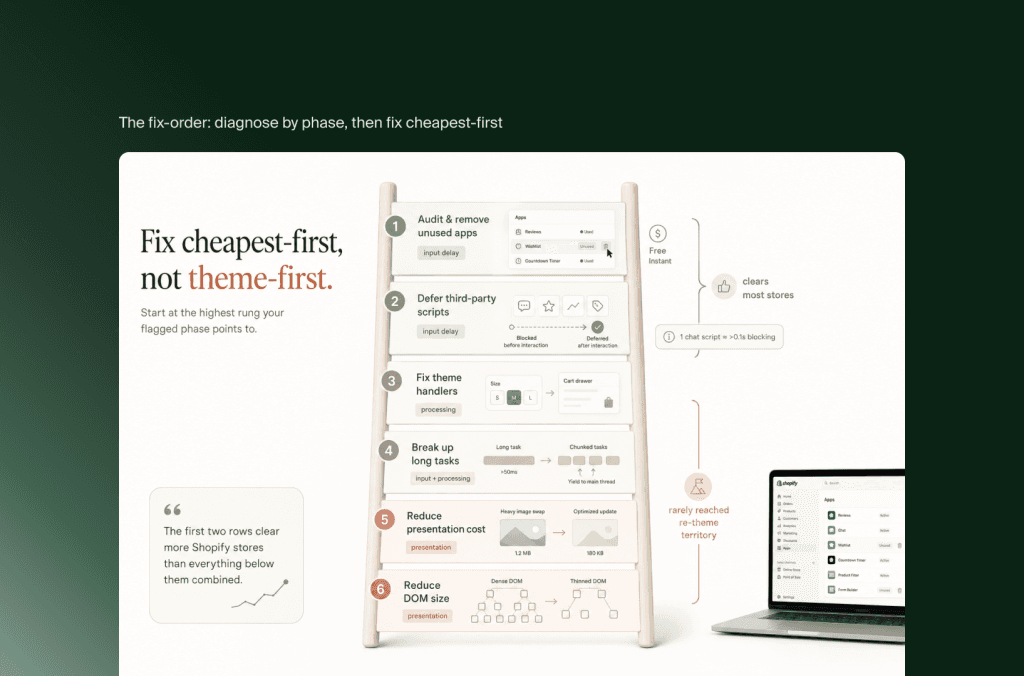
The fix-order: diagnose by phase, then fix cheapest-first
Once the trace tells you which phase is long, the fixes fall into a clear order, cheapest and highest-impact first. The principle behind the order is simple: most Shopify INP failures are input-delay problems caused by a congested main thread, and the cheapest way to relieve congestion is to stop code you do not need from running. So you work outward from what you can remove, toward what you have to rewrite, and only reach the theme’s deep architecture if the earlier steps have not cleared it.
The table below is the decision tree flattened into an order. Read the phase your trace flagged, and start at the highest row that applies.
Order | Fix | Which phase it targets | When it is your problem |
1 | Audit and remove unused apps | Input delay | You have installed apps you no longer use, each still injecting scripts on every page |
2 | Defer or delay third-party scripts | Input delay | Chat, reviews, analytics, and pixels load eagerly and block the main thread before interaction |
3 | Fix the theme’s own interaction handlers | Processing time | The slow interaction is a native theme element: variant selector, cart drawer, filter, search |
4 | Break up long tasks | Input delay + processing | A single script runs a long, uninterrupted task that blocks response to taps |
5 | Reduce presentation cost | Presentation delay | The interaction updates a large or deeply nested part of the page, or swaps a heavy image |
6 | Reduce DOM size and complexity | Presentation delay | Pages carry thousands of nodes, making every post-interaction paint slower |
The first two rows clear more Shopify stores than everything below them combined, because the most common cause is simply too much third-party JavaScript loading too eagerly. Removing an app you forgot you had is free and instant. Deferring the scripts that remain, so a chat widget or review platform loads after the page is interactive rather than fighting the first taps, is usually a theme or tag-manager change, not a rebuild. A single chat script can add well over a tenth of a second of main-thread blocking to every page it touches, so this is rarely marginal work.
Rows three and four are where a developer earns their keep, but note they are still edits, not a re-theme. If the trace shows the processing phase is long on a native element, the handler for that element is doing too much synchronous work, and the fix is to trim it, debounce it, or move non-urgent work off the critical path with techniques like yielding to the main thread between chunks. Rows five and six address the presentation phase, the rarer culprit, where the interaction forces the browser to repaint too much at once. Worth saying plainly: you rarely descend the whole table. You measure, you land on the row your phase points to, you fix that, and you re-measure before touching the next, because the score often clears two or three rows before you expected it to.
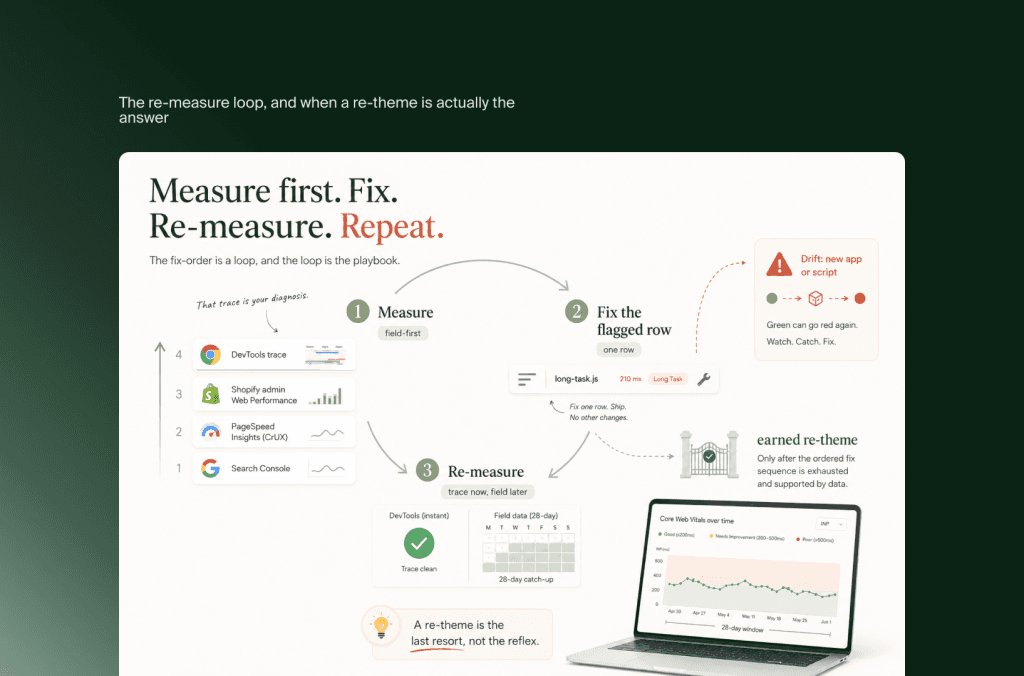
The re-measure loop, and when a re-theme is actually the answer
The fix-order is a loop, not a single pass, and the loop is the actual playbook. Fix the row your trace pointed to, then re-measure before you touch anything else, because performance work is full of changes that look right and move nothing. Two things make this loop slower than people expect, and knowing them prevents a lot of panic. First, INP is a field metric on a rolling twenty-eight-day window, so a fix shipped today does not show up in Search Console or CrUX until real-user data accumulates over the following weeks. Verify the fix immediately in a DevTools trace for instant feedback, then wait for the field data to confirm it. Second, INP drifts as your store changes: adding one new app or script can quietly push a passing score back into failure, which is why monitoring belongs in the runbook rather than in a one-time cleanup.
There is an honest boundary worth naming, because the whole piece has argued against reaching for it first. Occasionally a store works the full fix-order, clears the apps, defers the third-party scripts, trims the handlers, breaks the long tasks, and still fails, because the theme’s own architecture is the constraint: a bloated, heavily customized build where the interaction logic is tangled through everything. That is the rare case where deeper theme work, or a rebuild on a leaner foundation, is genuinely the answer rather than the reflex. The point of the order is that you arrive at that conclusion having earned it, with data showing the cheaper fixes were not enough, instead of spending a rebuild budget on a problem two deferred scripts would have solved. If your trace lands you there, that’s the point to bring in a Shopify Plus agency to scope the rebuild against the same data rather than a fresh guess. INP is one input into the broader Core Web Vitals and search picture, and it responds to the same discipline: measure first, fix in order, re-measure, and keep watching.
Frequently Asked Questions
What is a good INP score?
Google considers an INP of 200 milliseconds or less good, 200 to 500 needs improvement, and over 500 poor, measured at the 75th percentile of real user interactions. Because INP reports your worst significant interaction across the whole visit, a single slow element like a variant selector can fail an otherwise fast store.
Can Shopify apps cause poor INP?
Yes, and they are the most common cause. Every app can inject JavaScript that runs on the main thread, and review widgets, chat, popups, analytics, and retargeting pixels are frequent offenders. A single chat script can add well over a tenth of a second of blocking to every page, which is why auditing and deferring apps is the first step in the fix-order.
Can I fix INP without rebuilding my theme?
Almost always. Most Shopify INP failures are caused by too much third-party JavaScript loading too eagerly, which is fixed by removing unused apps and deferring the scripts that remain, not by a re-theme. A rebuild is warranted only in the rare case where the fix-order runs out and the theme’s own architecture is proven to be the constraint.
Why did my INP not improve after I fixed it?
Either you fixed a phase or interaction that was not the one being reported, which is why measuring the worst interaction first matters, or the fix is real but the field data has not caught up. INP is measured over a rolling twenty-eight-day window, so confirm the change in a DevTools trace immediately and expect Search Console to follow over the next few weeks.
Key Takeaways
INP fails on Shopify because storefronts are interaction-dense. Variant pickers, cart drawers, filters, search, and every app’s scripts compete for a main thread that INP grades on its worst interaction.
Measure in the field, not the lab. Use Search Console, PageSpeed Insights field data, and Shopify’s admin Web Performance report to find the worst interaction and which of the three phases is long.
Work the fix-order cheapest-first. Audit and remove unused apps, defer third-party scripts, then fix theme handlers, break long tasks, and reduce presentation cost. The first two rows clear most stores.
A re-theme is the last resort, not the reflex. Reach it only after the ordered fixes are proven insufficient, with data to justify the spend.
INP drifts, so monitor it. Field data updates on a twenty-eight-day window, and one new script can undo a pass. Build re-measurement into the runbook.
Fixing INP is less a technical mystery than a matter of order. The stores that clear it are not the ones with the best developers, they are the ones that measured the worst interaction before touching anything, then worked the fixes from cheapest to deepest instead of reaching straight for the rebuild. Pin the fix-order to your team’s performance runbook and run it the same way every time a score slips, and save this alongside it so the next red status in Search Console is a checklist rather than a scramble.
Related articles


